Google Classroom
Google LLCEducation
2.839.70K Reviews
- Version
- 3.58.916096563
- Installs
- 100.00M
- Age Rating
- Everyone
Screenshots
Our Review of Google Classroom
 Analysis by Appyee
When a teacher sends work through several channels, even a simple assignment can become difficult to track: instructions arrive in one place, files in another, and feedback later still. I see Google Classroom as most useful when a school or teacher already relies on Google tools and wants one shared place to organize that routine. It is an education app from Google LLC, free to use, and suitable for everyone. Its average rating is 2.8 from around 2.1 million ratings, so it is clearly widely used, but the score also suggests that the experience does not work smoothly for everyone.
Begin with the class, not the app
The first practical question is not whether the interface looks simple; it is whether your teacher, school, or study group actually uses Classroom. Students generally need an invitation or class code, while teachers need to set up the class and decide how assignments and announcements will be handled. If your course already runs there, the app can make everyday participation easier. If classmates and instructors are using email, a learning portal, or another system instead, installing it alone will not create a useful workflow.
On Android or iOS, I would treat the phone app as a companion for checking what needs attention and responding while away from a computer. The desktop experience may be more comfortable for longer writing, detailed file organization, or careful grading. The app is free, but access to the relevant class and its materials depends on the way the school or teacher has arranged the course. That distinction matters: Classroom is a place to coordinate schoolwork, not a replacement for having a class to join.
From instruction to submitted work
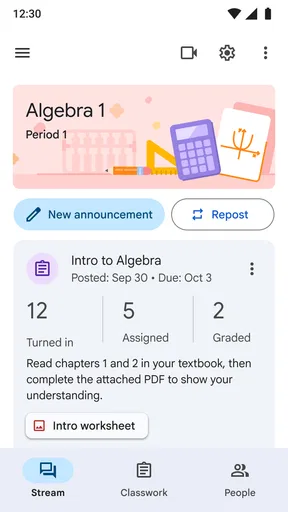
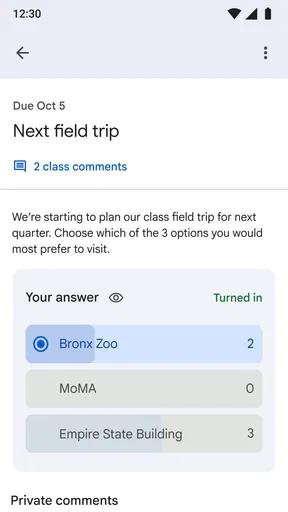
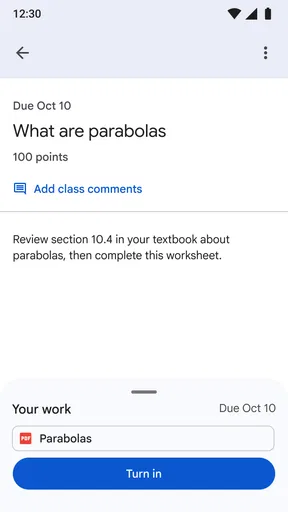
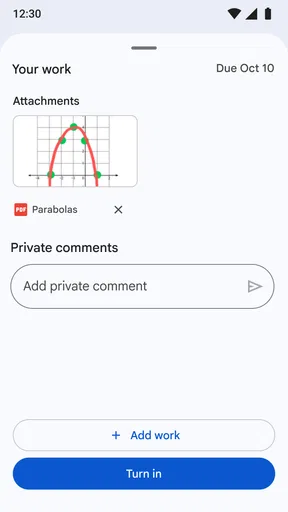
A typical student workflow starts by opening a class and reading the assignment details before touching any attached file. I recommend checking the instructions, due information, and included resources together first, then opening the document or link needed for the task. This small habit prevents a common mix-up: beginning work in the wrong file or missing a requirement that was written alongside the attachment rather than inside it.
Teachers can distribute materials and use Google Docs, Sheets, or Slides as part of the task. For students, the useful trade-off is that the work can stay close to the class instructions, instead of being scattered across unrelated messages. Still, I would not assume that every attachment is editable in the same way or that every course uses identical settings. Follow the teacher’s directions, and check that the work is associated with the intended assignment before considering it finished.
On a busy weekday, for example, a student might check the class between activities, notice a reading task, open the linked material, and make a note of what needs to be completed later on a laptop. The phone is good for catching the task and reviewing details; it is less comfortable for writing a long essay or restructuring a complicated presentation. Using the mobile app to keep track, then switching devices for the demanding part, is often a more sensible approach than trying to do everything on a small screen.
Feedback and the handoff between people
Classroom’s value is not limited to sending work from teacher to student. The assignment flow can also bring a response back: a teacher reviews a submission, adds feedback, and the student can use that guidance to revise or understand what to improve. I find this handoff more useful than a bare “submitted” status because the task can remain connected to the class context. It gives both sides a common reference point when several pieces of work are active.
For teachers, reviewing from a phone can be handy for a quick check or a short comment, particularly when the feedback is straightforward. For a large batch of detailed marking, a bigger screen is usually the better choice: it is easier to read full documents, compare work, and write considered notes without rushing. Students should also make a habit of revisiting the assignment after submission rather than assuming that handing it in ends the process. A returned comment may contain the most useful next step.
Announcements and class communication help keep routine notices near the work they concern. That can reduce the need to hunt through a separate chat for a reminder, but it does not guarantee that every student will see a message at the right moment. I would still check the class regularly and keep personal reminders for important deadlines. Classroom can organize communication; it cannot make a busy schedule or unclear instructions disappear.
Where it fits, and where it can frustrate
The strongest case for Classroom is a school or teacher already using Google’s ecosystem. Docs, Sheets, Slides, and Drive can fit naturally into the course workflow, and assignment-related files are easier to follow when students know where to look. Google Classroom has more than 100 million installs, but broad adoption does not mean it is the best fit for every learner or institution. A school committed to another learning platform may offer a more complete experience there, while a small group that only needs occasional file sharing might find a shared folder and email simpler.
One point I would not overlook is the boundary between organization and learning. Classroom can help keep assignments, materials, and feedback in order, but it does not explain a difficult topic just because the relevant file is attached. Students who need live discussion, tutoring, or a structured course with richer lesson delivery may need other tools alongside it. Likewise, a teacher who wants a platform independent of Google’s working habits should compare alternatives before moving an entire class over.
There is also a human side to the setup. A class code can make joining quick, but students still need to use the correct account and enter the right class. If an assignment seems missing, I would first check that I am in the intended class and account, then revisit the teacher’s instructions before assuming the app has lost it. That simple check can save time when someone has more than one school or personal Google account on a device.
Getting Started with Google Classroom
First things first, let’s talk about the setup. Getting started with Google Classroom is surprisingly straightforward. If you have a Google account, you’re already halfway there. Just download the app from the Play Store for Android or the App Store for iOS, and you’re good to go. The interface is clean, intuitive, and super user-friendly. It’s like Google knew exactly what we needed.
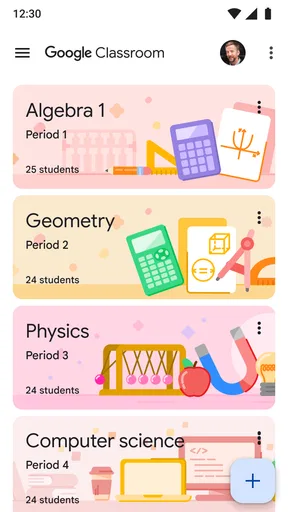
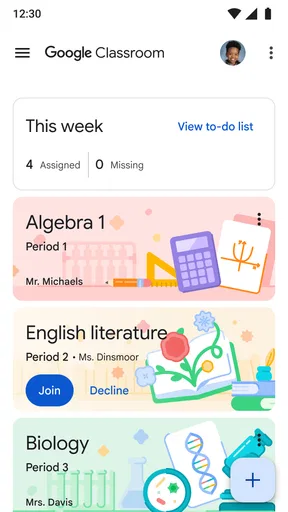
Once you log in, you’ll find yourself on a dashboard that displays all your classes. Each class is like its own little universe where you can manage assignments, announcements, and grades. Teachers can create a class with just a few clicks, and students can join using a simple code provided by their instructor. Honestly, it’s as easy as pie.
Features That Make a Difference
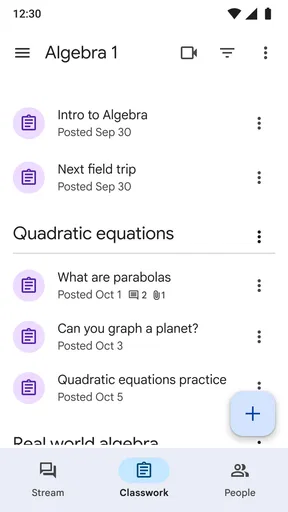
Now, let’s dive into what makes this app stand out. One of the biggest highlights is the assignment management feature. Teachers can easily create and distribute assignments to their students. You can attach documents, videos, or links to ensure students have all the resources they need.
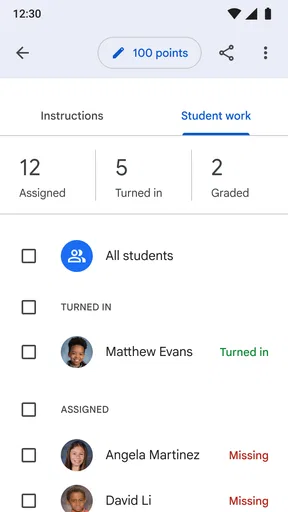
The grading system is another nifty feature. The app allows you to grade assignments right from your phone or tablet. You can leave comments and suggestions, making the feedback process smooth and efficient. It’s like having your own virtual assistant keeping track of all your grading needs.
Communication is key in any educational setting, and Google Classroom nails it. There’s a built-in messaging system that allows for seamless communication between teachers and students. Whether you’re sending out an announcement or clarifying doubts, it’s all just a few taps away.
Integration with Other Google Apps
If you’re already using Google’s suite of apps, then you’re in for a treat. Google Classroom integrates perfectly with other Google apps like Docs, Sheets, and Slides. Need to assign a presentation? Just link a Google Slides file. Want to collaborate on a document? Google Docs has your back. This integration makes it incredibly easy to manage resources without leaving the Google ecosystem.
One cool feature is the automatic creation of folders in Google Drive for each assignment. It helps keep everything organized and accessible at all times. No more rummaging through endless folders trying to find that one document!
Access Anytime, Anywhere
Gone are the days of being tied to a desktop computer. With the Google Classroom app, you can access your classes from any device, whether it’s a smartphone, tablet, or laptop. This flexibility is a game-changer, especially in today’s world where remote learning is more prevalent than ever.
Imagine being able to check assignments while sipping coffee at your favorite café or grading papers during a quick lunch break. The app’s mobile-first approach ensures you’re always in the loop, no matter where you are.
Final Thoughts
In a nutshell, Google Classroom is a powerhouse app that simplifies the educational process. It’s efficient, user-friendly, and packed with features that cater to both educators and students. The seamless integration with Google’s other apps only adds to its appeal, creating an ecosystem that’s hard to beat.
Whether you’re a seasoned teacher looking to enhance your teaching methods or a student aiming to stay on top of your game, Google Classroom is definitely worth checking out. It’s like having a personal assistant in your pocket, ready to help with all your educational needs. So go ahead, give it a try, and see how it transforms your classroom experience!
What to check before relying on it
For parents, the app can be useful when a school has made Classroom part of its routine, but it is not automatically a parent-facing overview of every school activity. I would ask the teacher how families are expected to follow progress rather than assuming that a student’s class view will provide everything a parent needs. That avoids turning the app into another source of confusion when communication expectations have not been agreed on.
It is also worth choosing the right device for the job. A phone is convenient for checking an announcement, confirming a task, or reading a short comment. A tablet can make reviewing a document less cramped, while a laptop is usually more practical for substantial writing and detailed grading. Switching devices is not a flaw in the workflow; it is a realistic way to use a mobile classroom tool without forcing a small screen to handle every task.
Who will get the most from it
I would recommend Classroom to students who already receive coursework there, teachers who want assignments and feedback connected to class materials, and families whose school has explained how it uses the platform. Its current version is 3.58.916096563, and the app first appeared on January 14, 2015; it supports iOS 8.1 or later. Those details make it a long-running option, though a school’s own requirements and the device in hand matter more than version information when deciding whether it will fit a particular course.
The published rating is a caution worth taking seriously rather than ignoring: a 2.8 average across a very large audience means I would not call the experience universally smooth. The app’s basic idea is clear, but frustration can come from the class setup, account mix-ups, a school’s chosen workflow, or trying to do extended work on a phone. I would try it with one active class first and judge it by whether the teacher’s materials and feedback are easy to follow in practice.
If you want a general-purpose note-taking app, a tutoring service, or a full learning environment that does not depend on your school’s Google-based setup, Classroom is probably not the right standalone choice. If your teacher already runs the course through it, though, it can be a useful everyday hub: check the task, use the linked material, submit through the class, and return for feedback. That complete loop is where I think the app earns its place—not as a substitute for teaching, but as a practical way to keep the work and the people around it connected.
Verdict
Strengths of Google Classroom
- User-friendly interface for easy navigation.
- Seamless integration with Google Drive.
- Real-time collaboration fosters teamwork.
- Automatic assignment organization improves workflow.
- Multi-device compatibility enhances accessibility.
Limitations of Google Classroom
- Requires internet for most functionalities.
- Limited customization options in interface.
- Notifications can become overwhelming.
- Some features require additional apps.
- Lacks advanced analytics for tracking.
Other Releases by Google LLC
View All
Google Calendar
Productivity4.6

Google Messages
Communication4.6

Tools4.0

Google TV
Video Players & Editors3.9
Similar Picks in This Category
View All
Duolingo: Language Lessons
Duolingo4.7

Unacademy: Learn & Crack Exams
Unacademy3.2

Bible App for Kids
Life.Church4.4

Cake - Learn English & Korean
Cake Corp.4.7

Brainly: AI Homework Helper
Brainly4.5

Photomath
Google LLC4.3
Frequently Asked Questions
What is Google Classroom and how does it work?
Google Classroom is a free platform that helps educators manage coursework for their students. It allows teachers to create classes, distribute assignments, and communicate with students. Students can access their class materials, submit assignments, and receive feedback. It integrates seamlessly with other Google services like Google Docs, Drive, and Calendar.
Is Google Classroom available on both Android and iOS devices?
Yes, Google Classroom is available as a mobile app on both Android and iOS devices, allowing users to access their classes on the go. The app provides most of the functionalities of the web version, including viewing assignments, submitting work, and receiving feedback, making it convenient for students and teachers alike.
How secure is Google Classroom for storing student data?
Google Classroom is designed with security in mind, ensuring that student data is protected. It complies with industry-standard security protocols and privacy regulations, such as FERPA, to safeguard information. All data is stored securely in Google's cloud infrastructure, with access limited to authorized users.
Can parents access Google Classroom to monitor their child's progress?
Parents can receive summaries of their child’s activities in Google Classroom via email. These summaries include information about upcoming assignments, missing work, and class activities. However, parents do not have direct access to the classroom itself, as it is designed primarily for students and teachers.
Are there any costs associated with using Google Classroom?
Google Classroom is free to use for schools, non-profits, and anyone with a personal Google account. There are no hidden fees or premium features that require payment. Schools using Google Workspace for Education can access additional features, but the core functionalities of Google Classroom remain free.
